
Download Gadwin PrintScreen – Free, Secure Screen Capture Tool for Windows & Mac
Looking for a simple yet powerful way to capture your screen? Gadwin PrintScreen is a lightweight, free screen capture software that makes taking screenshots effortless. Whether you're a student, teacher, content creator, or professional, this tool helps you capture full screens, specific windows, or custom regions with just a few clicks.
With customizable hotkeys, multiple output options, and support for six image formats, Gadwin PrintScreen streamlines the process of saving, copying, printing, or sharing your screen captures. The intuitive interface ensures even beginners can get started quickly, while advanced users appreciate the level of control over file destinations and image settings. Best of all, it’s completely free to download and use with no hidden costs or ads.
Key Features of Gadwin PrintScreen
Gadwin PrintScreen stands out in the crowded field of screen capture tools thanks to its clean design and robust feature set. One of its most praised aspects is the customizable hotkey system. By default, it uses the standard PrintScreen key, but you can easily reassign it to a combination like Ctrl+Shift+S or Alt+P, making it accessible and efficient for daily use. This flexibility ensures you can capture your screen without interrupting your workflow.
Another major highlight is the multiple output destinations. After capturing your screen, you can instantly save the image to a designated folder, copy it to the clipboard for quick pasting into documents or emails, print it directly, or even send it via email—no extra steps required. This is especially useful for educators who need to share visual instructions with students or professionals preparing reports and presentations.
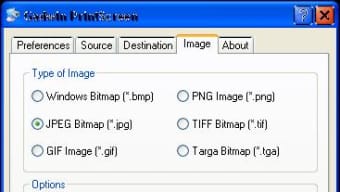
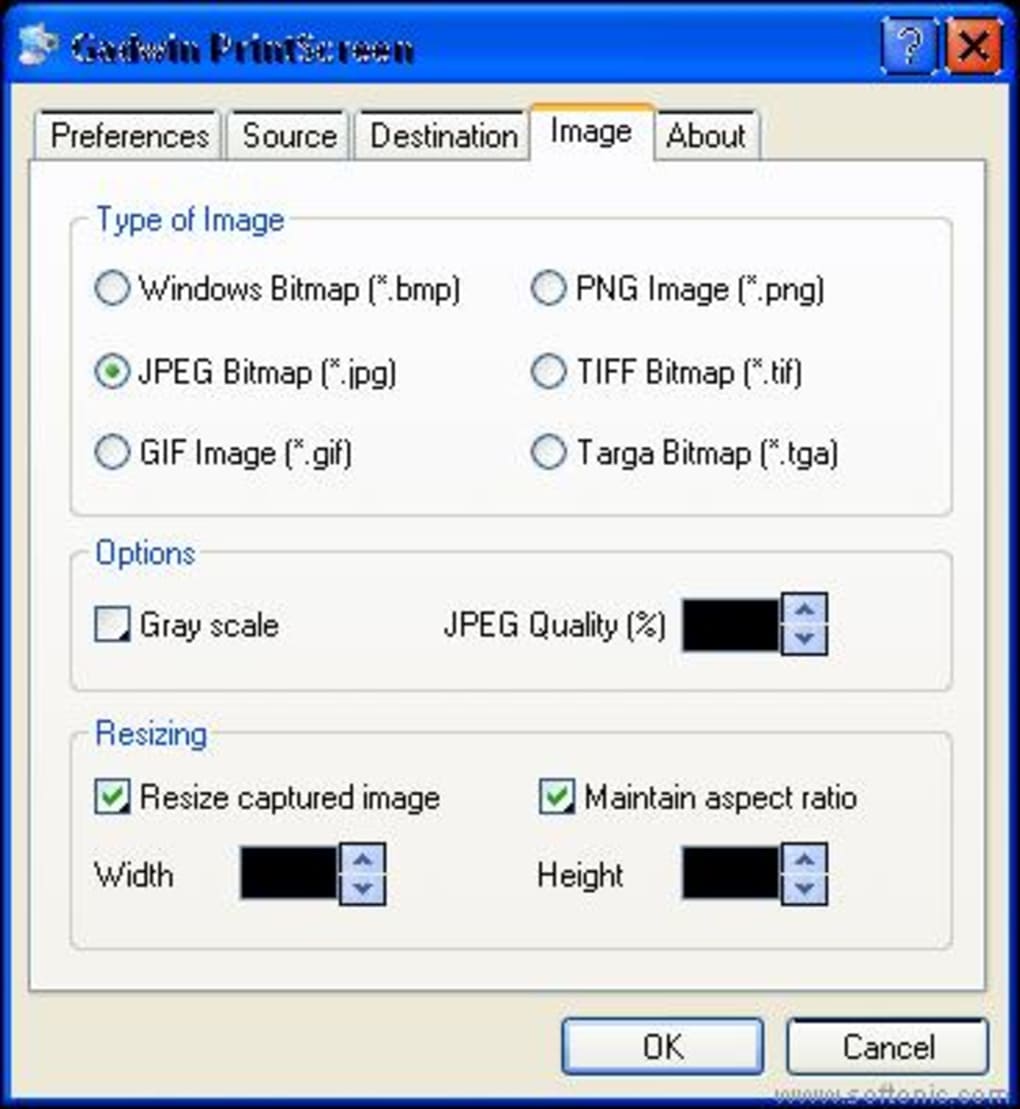
The software supports full-screen, window-specific, and region-based captures, giving you complete control over what gets recorded. Whether you're documenting a bug in an app, creating a tutorial, or sharing a chat conversation, you can isolate exactly what you need. Additionally, Gadwin PrintScreen offers six image format options: PNG, JPEG, BMP, TIFF, GIF, and PDF. Each format can be resized to suit your needs, helping you balance quality and file size.
For those who value privacy and security, the software operates offline and doesn’t require an internet connection or account creation. There are no intrusive ads or bundled toolbars—just a straightforward, reliable tool designed to do one thing exceptionally well. With regular updates and a strong reputation in the free software community, Gadwin PrintScreen remains a trusted choice for screen capture across Windows and Mac platforms.
How to Install and Use Gadwin PrintScreen
Getting started with Gadwin PrintScreen is quick and hassle-free. Begin by visiting the official website and downloading the latest version of the software. The download is free, secure, and compatible with both Windows 7 and later as well as Mac OS X 10.10 and above. The installer is lightweight, typically under 10MB, and installs in under a minute.
Once installed, launch the application. You’ll be greeted with a minimal interface that focuses on functionality. Go to the Hotkey tab to set your preferred keyboard shortcut.
You can choose from a range of combinations, including PrintScreen, Ctrl+Shift+S, or Alt+P. After setting your preferred key, move to the Destination tab to configure where your screenshots will go. Options include saving to a specific folder, copying to the clipboard, printing, or sending via email.
To take a screenshot, simply press your assigned hotkey. If you want more control, you can also use the on-screen capture tool to select a specific window or region. After capturing, you’ll see a preview window where you can adjust the image size, choose the format, and apply basic edits like cropping or adding annotations (if supported). Once satisfied, click “Save” or “Send” to complete the process.
For users who need to capture multiple screenshots in succession, the software remembers your last settings, so you don’t have to reconfigure each time. This makes it ideal for creating step-by-step guides or documenting software workflows. The tool also integrates seamlessly with other apps—paste screenshots directly into Word, PowerPoint, or design software without any extra conversion.
Compatibility and System Requirements
Gadwin PrintScreen is designed to work smoothly across a wide range of devices and operating systems. It is fully compatible with Windows 7, 8, 10, and 11, including both 32-bit and 64-bit versions. For Mac users, the software supports macOS 10.10 (Yosemite) and later, ensuring broad accessibility across modern systems.
The application requires minimal system resources—typically less than 50MB of RAM and a few hundred MB of disk space. This makes it ideal for older computers or laptops with limited processing power. Unlike many bloated screen capture tools, Gadwin PrintScreen runs efficiently in the background without slowing down your device.
It also works well with multiple monitors, allowing you to capture full desktops or specific screens in a multi-display setup. The software respects your display settings and accurately captures the intended area, even when scaling is involved. This is particularly helpful for users working with high-resolution monitors or those using scaled displays for accessibility.
For mobile users, while there’s no native Android or iOS version, the tool can still be used in conjunction with remote desktop apps or screen mirroring tools to capture content from mobile devices. However, for direct mobile capture, users may want to consider dedicated mobile screen capture apps.
Pros and Cons of Gadwin PrintScreen
- Pros:
- Completely free to download and use with no hidden fees
- Lightweight and fast—minimal impact on system performance
- Customizable hotkeys for quick and easy access
- Multiple output options: save, copy, print, email
- Supports six image formats and resizing
- Simple, intuitive interface—great for beginners
- Secure and offline—no data collection or ads
- Regular updates ensure compatibility with new OS versions
- Cons:
- Limited to desktop platforms (no native Android/iOS app)
- No built-in image editing tools beyond basic resizing
- Advanced features like annotations or watermarks are not available
- Some users may miss cloud integration or automatic backup
- Interface is minimal—may feel too basic for power users seeking more features
Frequently Asked Questions (FAQ)
- Is Gadwin PrintScreen free to download and use?
- Yes, Gadwin PrintScreen is completely free to download and use. There are no trial periods, subscription fees, or hidden costs. It’s a freeware tool designed to provide reliable screen capture functionality without any strings attached.
- Can I use Gadwin PrintScreen on Mac and Windows?
- Yes, Gadwin PrintScreen is available for both Windows (7 and later) and Mac (OS X 10.10 and above). You can download the appropriate version for your operating system from the official website.
- Does Gadwin PrintScreen support multiple monitors?
- Yes, it fully supports multi-monitor setups. You can capture your entire desktop across multiple screens or select a specific monitor for the screenshot.
- Can I resize or edit my screenshots after capturing them?
- Yes, after capturing a screenshot, you can resize the image within the preview window. However, advanced editing features like annotations, cropping, or filters are not included in the software.
- Is there a mobile version of Gadwin PrintScreen?
- No, there is no native Android or iOS app. However, you can use the software on a desktop and mirror your mobile screen via remote desktop tools to capture mobile content.
Final Verdict: Why You Should Download Gadwin PrintScreen Today
If you're searching for a reliable, no-frills screen capture tool that just works, Gadwin PrintScreen is an excellent choice. It delivers on its promise: simple, fast, and free. Whether you're creating tutorials, documenting software issues, or sharing visual content with colleagues, this software makes the process seamless. With support for multiple output formats, customizable hotkeys, and cross-platform compatibility, it’s a must-have for students, teachers, and professionals alike.
While it lacks advanced editing features and mobile support, its core functionality is solid and well-executed. The absence of ads, trackers, or subscriptions adds to its appeal. For anyone needing a dependable way to capture and share screen content, Gadwin PrintScreen offers unmatched value.
Ready to simplify your screen capture workflow? Download Gadwin PrintScreen now—free, secure, and ready to use in seconds.







